

Web App
The Basic Memory web app at app.basicmemory.com is a full-featured interface for working with your knowledge base. Notes open ready to edit, your AI assistant can join you live, and everything is saved as plain Markdown. Anything your AI assistant can do, you can do here too.
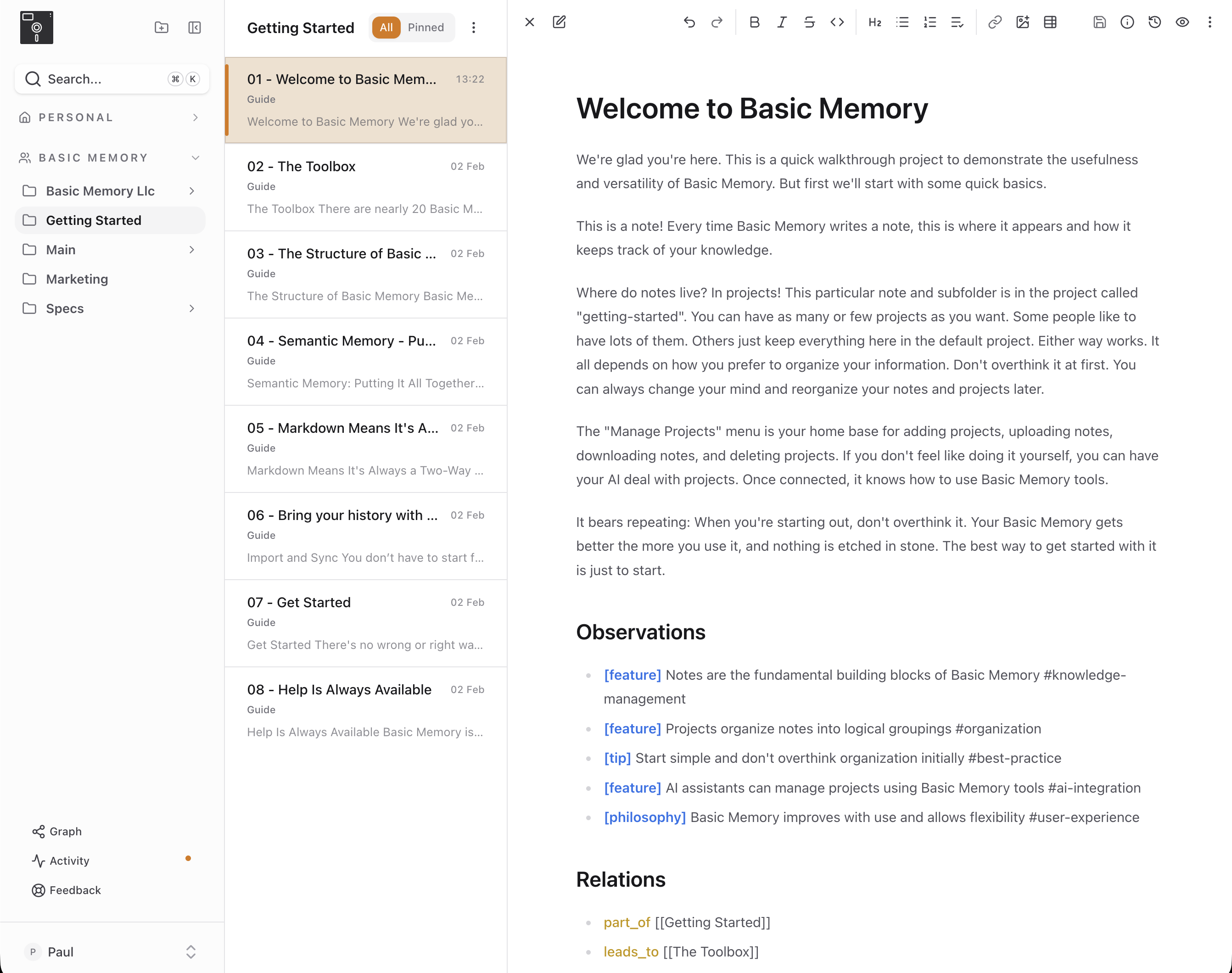
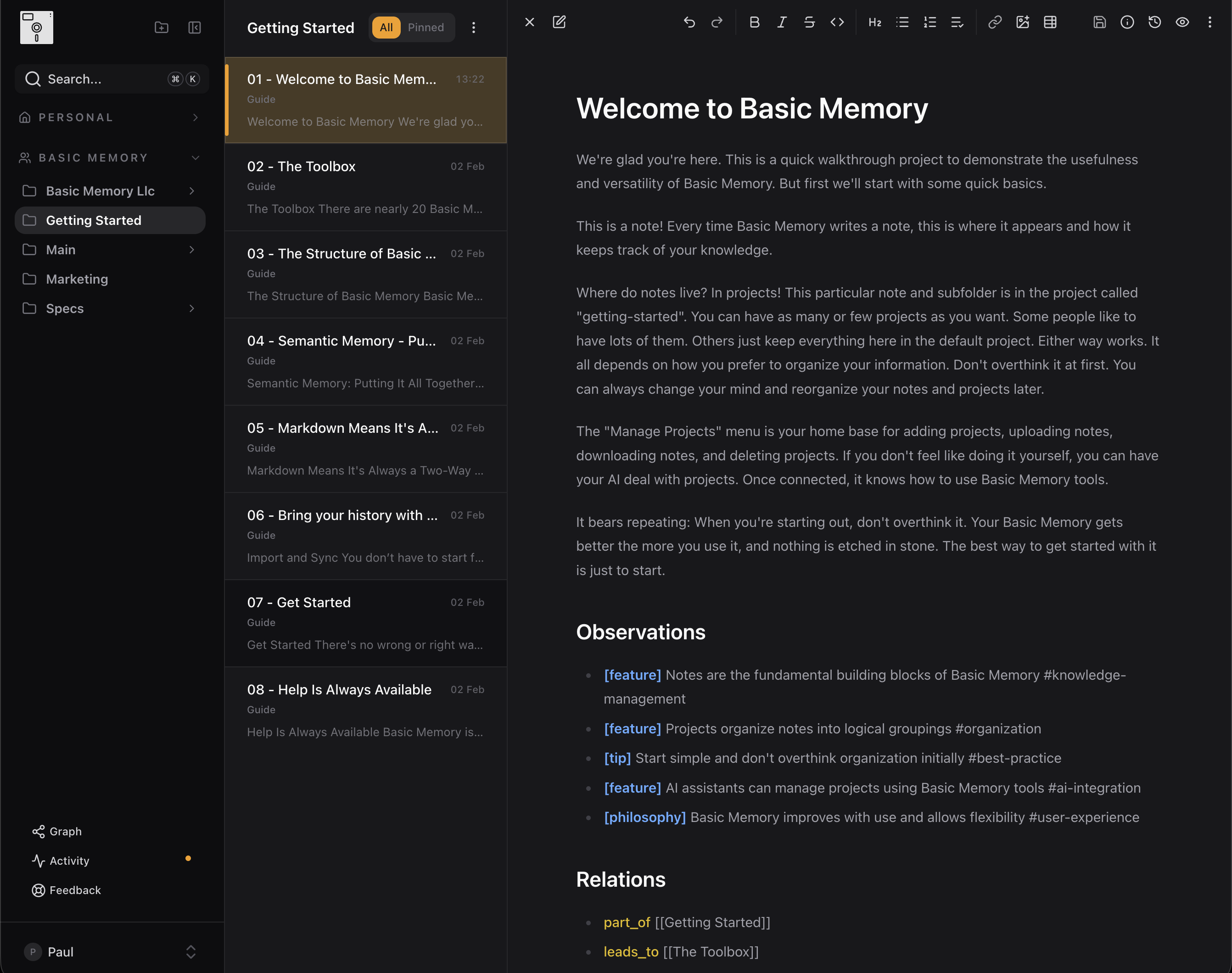
This page is the tour of the app itself. Writing and shortcuts live on the Note Editor page; working with agents lives on AI Collaboration.
Layout
The app is organized into three panes:
| Pane | Contents |
|---|---|
| Sidebar | Pinned notes, your workspaces (personal and teams) with their project trees, search, Graph and Activity, your account menu |
| Note list | Notes in the current folder or project, grouped by date |
| Note detail | The selected note, opened ready to edit |
Click a folder in the sidebar to filter the note list. Select a note to open it in the detail pane.
Navigating notes
Browse by folder
Expand folders in the sidebar to navigate your project structure. Click a folder to filter the note list to that location.
Filter with tabs
Switch between views above the note list:
| Tab | Shows |
|---|---|
| All | Every note in the current folder/project |
| Pinned | Notes you've pinned for quick access |
Search notes
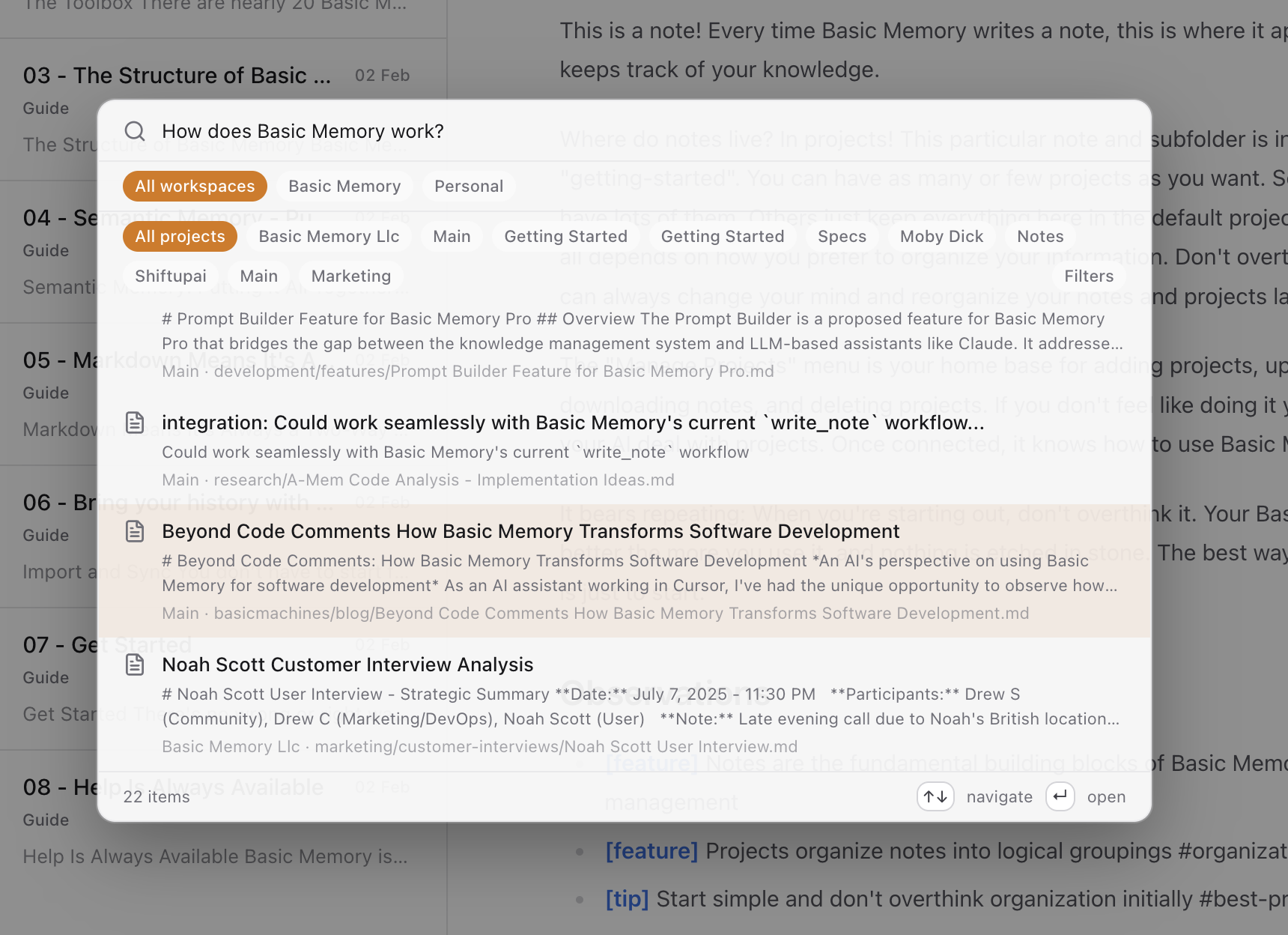
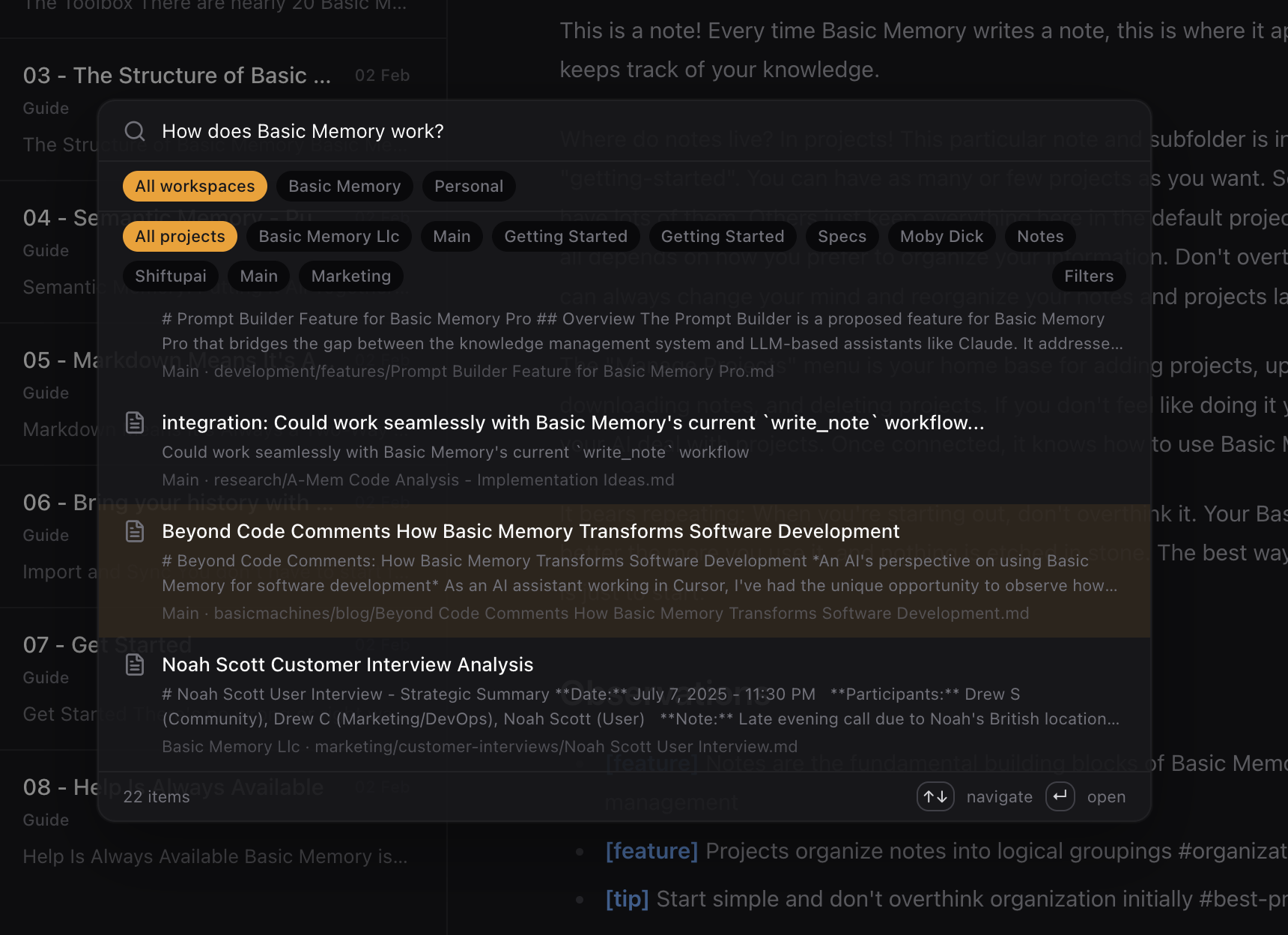
Open search from the sidebar (or Cmd/Ctrl + K) to search by title or content. Search spans all your projects by default — use the scope controls to narrow to a workspace, project, or folder.
Pin important notes
Open a note's ⋮ menu (or use the command palette) and choose Pin Note. Pinned notes appear in the Pinned tab.
Activity
The Activity view in the sidebar keeps you aware of what's happening across the workspace — operations in progress (imports, indexing, large edits) and recent completed changes from every member and connected agent, with direct links to the affected notes. When your assistant writes a note over MCP, it shows up here live.
Explore the graph
Open Graph in the sidebar for the Knowledge Graph, then pick a view: Project (cards), Structured, or Explore — a 2D/3D rendering of your knowledge graph, notes as nodes, relations as links. Drag to orbit, scroll to zoom, click a node to open the note, and filter by relation type or search for a note to focus on.
Projects
Projects are top-level containers. Each has its own folder tree, notes, and sync configuration.
Switch projects
Use the project selector in the sidebar to switch between projects.
Manage projects
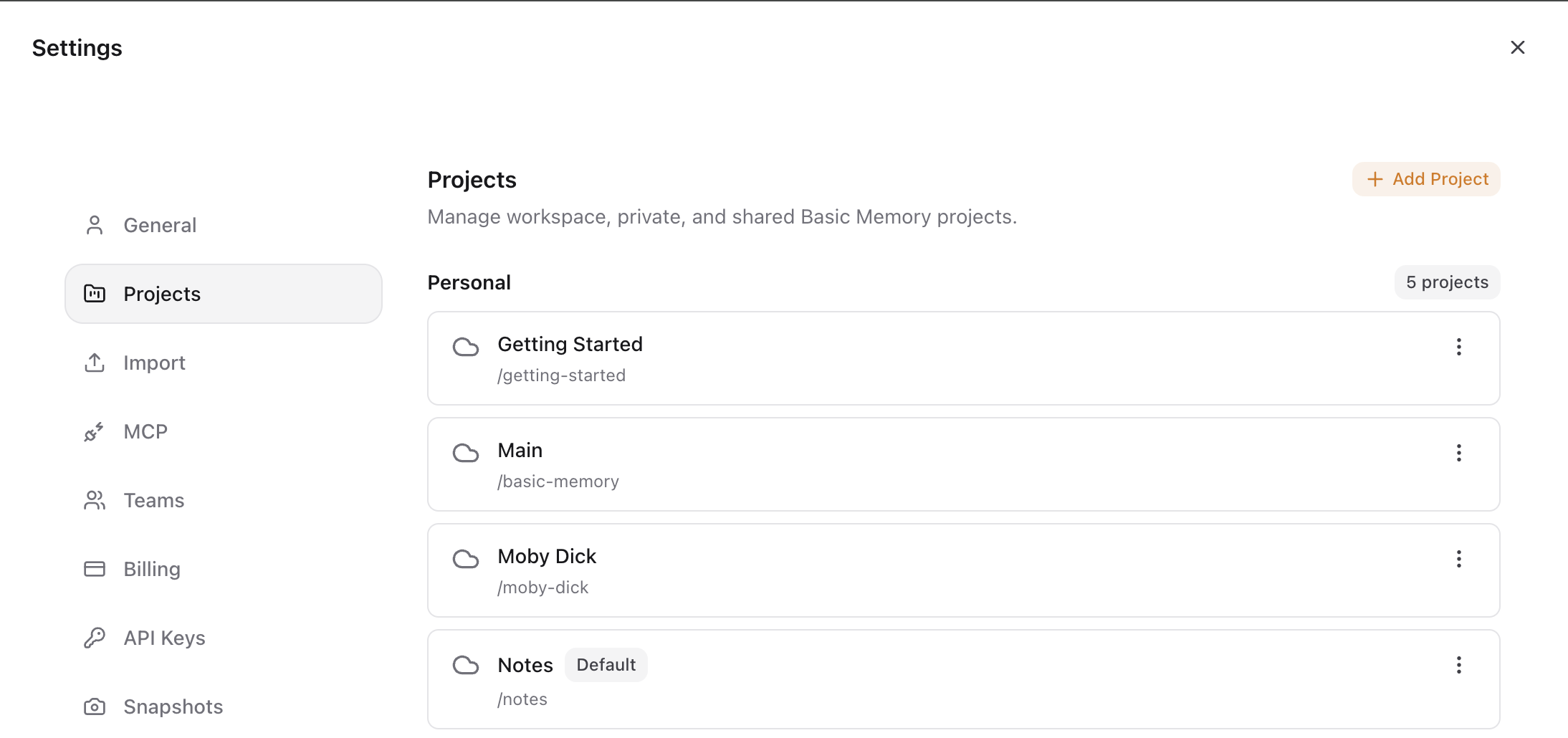
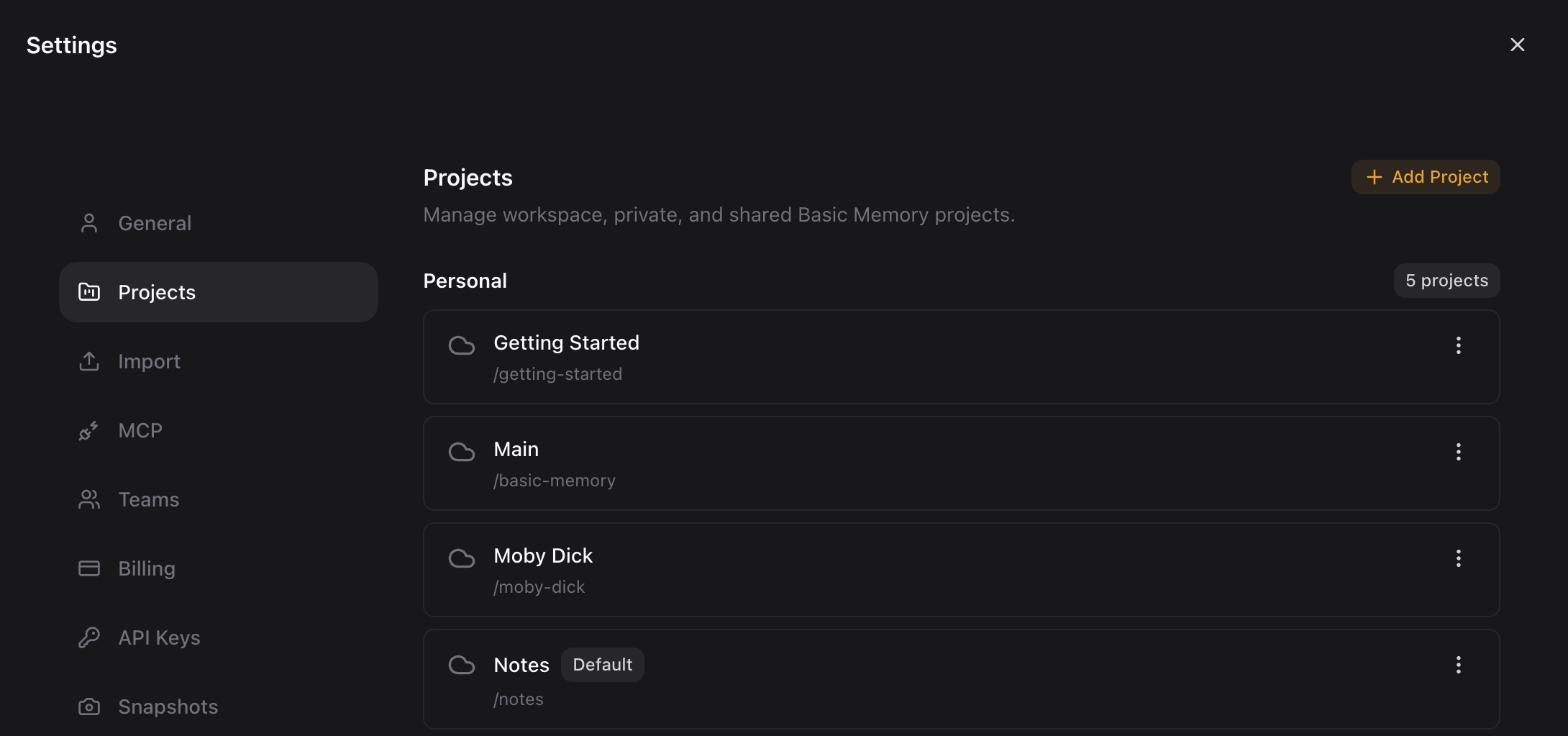
Go to Settings → Projects to create new projects, download a project as a ZIP, or delete a project. To upload files, use Upload Notes from a project or folder's context menu in the sidebar, or import a zipped folder via Settings → Import → Project ZIP.
Import data
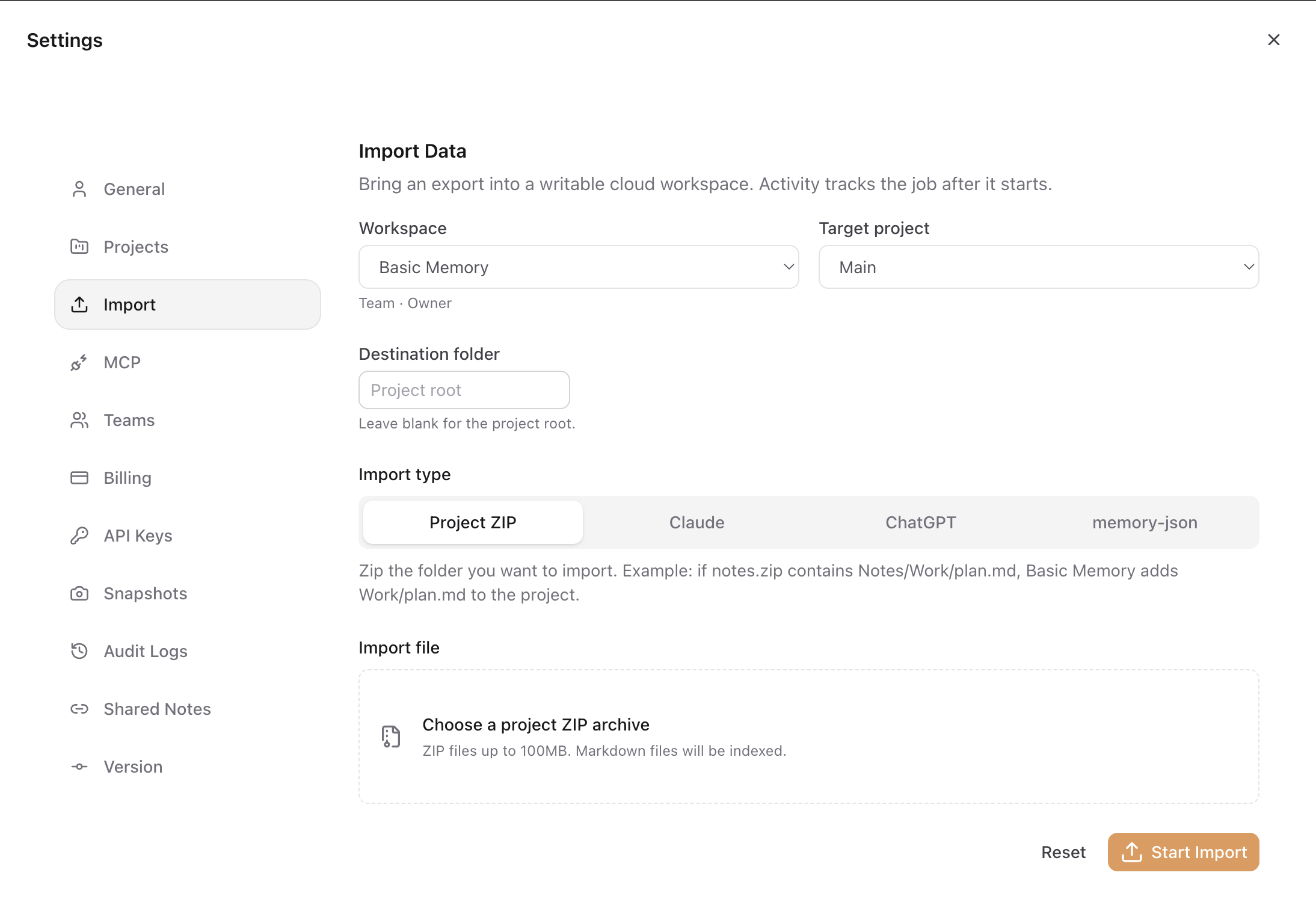
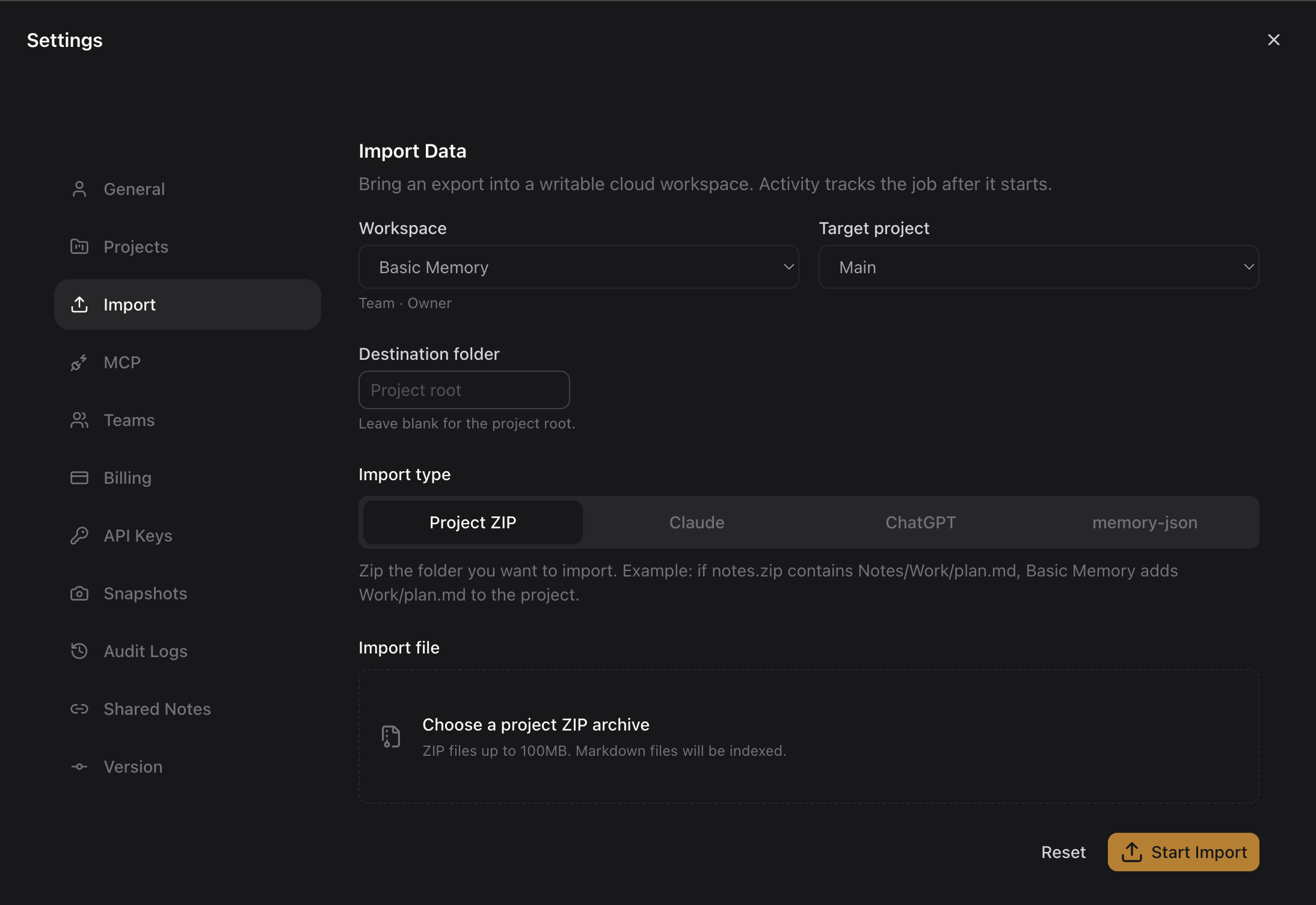
Bring existing content into a writable project from Settings → Import — pick the team, target project, and an optional destination folder.
| Import type | File |
|---|---|
| Project ZIP | A ZIP of a folder of Markdown files — directory structure is preserved (up to 100MB) |
| Claude | conversations.json from a Claude export |
| ChatGPT | The conversations JSON from a ChatGPT export (extract it from ChatGPT's export ZIP) |
| memory-json | Entity/relation JSON exported from the memory-json MCP server |
- Go to Settings → Import
- Select the import type
- Choose a target project (or use the default)
- Set a destination folder (default:
imports) - Upload your file and start the import
Snapshots
Create point-in-time backups of your cloud data from Settings → Snapshots (select a workspace first). Use them before major changes like bulk imports or reorganizations.
Settings
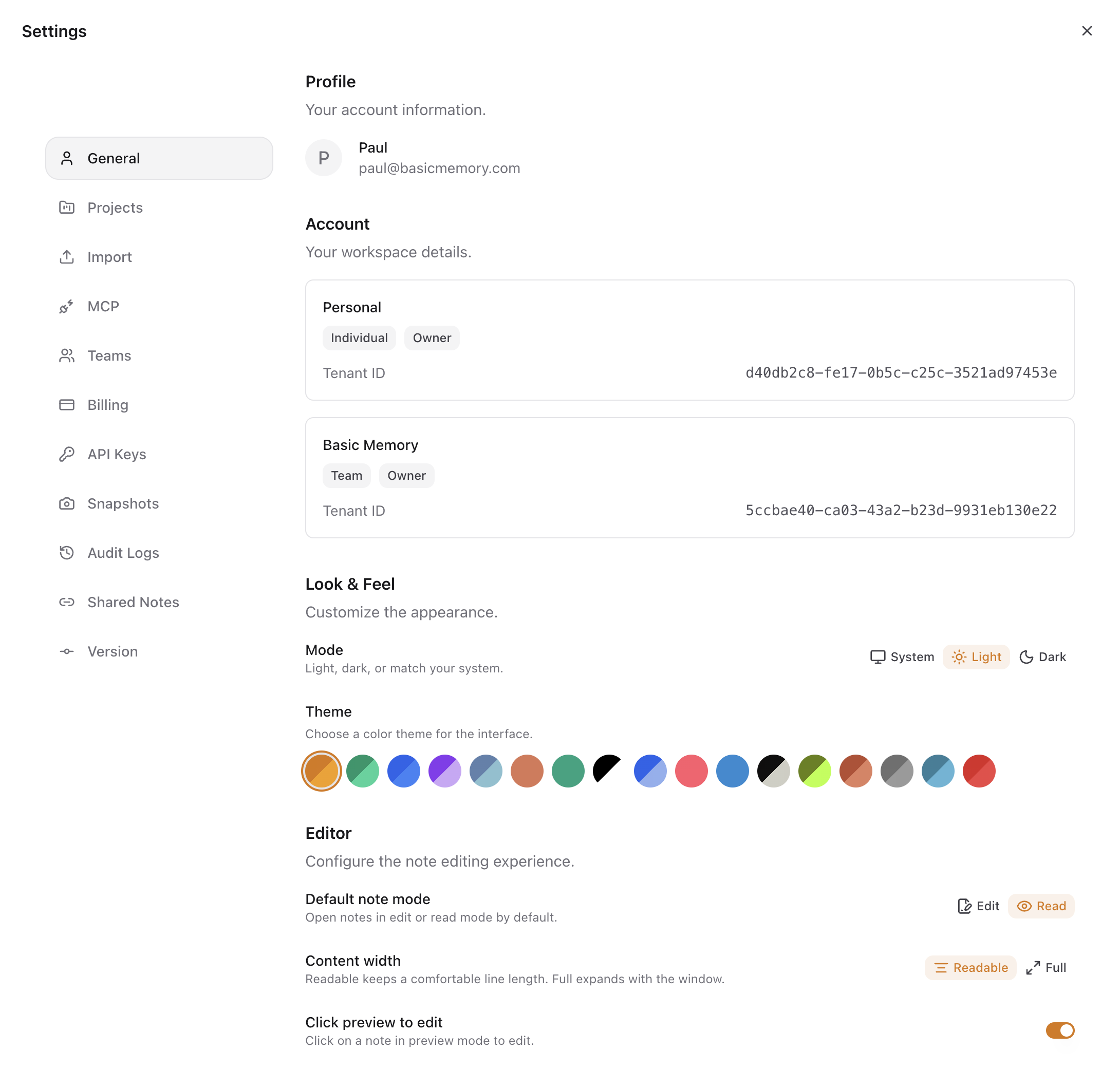
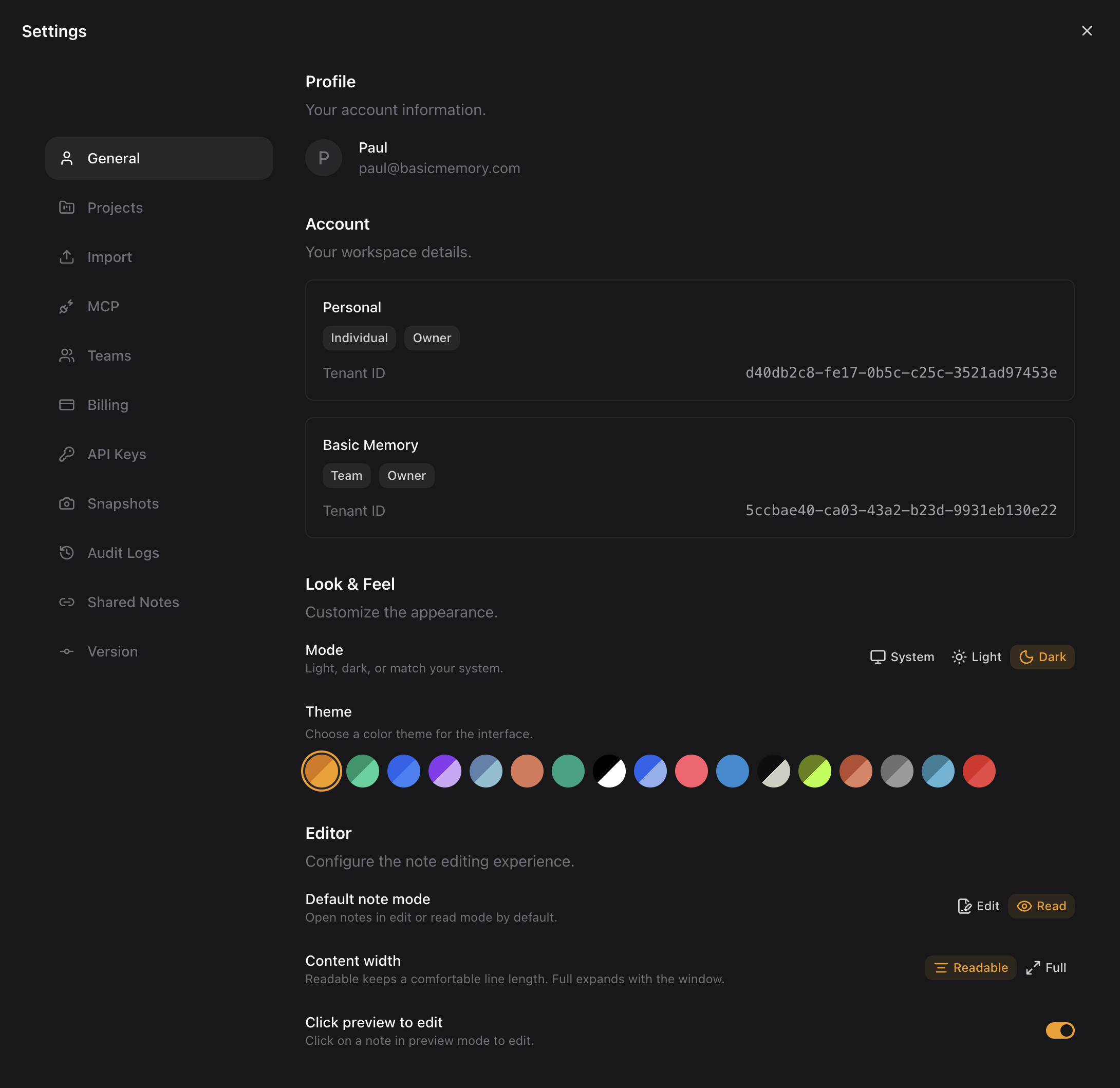
Access settings from the user menu (your avatar at the bottom of the sidebar) or the command palette.
| Section | What it does |
|---|---|
| General | Account and profile settings, Look & Feel (mode, theme, note list), and editor preferences |
| Teams | Your teams and workspaces at a glance |
| Members | Invite and manage team members, roles, and invitations |
| Billing | Manage payment and subscription seats |
| Projects | Create, download, and delete projects (team downloads require User Admin or above) |
| Import | Import project ZIPs, Claude/ChatGPT exports, or memory-json |
| MCP | Connect AI assistants via MCP |
| Notifications | Choose what the app notifies you about |
| API Keys | Create and manage API keys for programmatic access |
| Snapshots | Manage point-in-time backups per workspace |
| Audit Logs | Review workspace activity (team admins) |
| Shared Notes | Manage public share links for your notes |
| Version | App version information |
You can also customize appearance — see Themes.
Tips for Effective Use
Organize with folders
Create a folder structure inside each project that matches how you think:
my-project/
├── research/       # Learning and exploration
├── decisions/      # Decision records
├── meetings/       # Meeting notes
└── archive/        # Completed/old content
Use pinned notes
Pin your most-accessed notes (project overviews, quick references) for one-click access.
Create snapshots before big changes
Before reorganizing folders, bulk importing, or deleting lots of notes, create a manual snapshot.