

User Guide
This guide covers everything from creating your first notes to building a comprehensive knowledge graph.
Basic Memory Workflow
Using Basic Memory follows a natural cycle:
- Have conversations with AI assistants like Claude
- Capture knowledge in Markdown files
- Build connections between pieces of knowledge
- Reference your knowledge in future conversations
- Edit files directly when needed
- Sync changes automatically
Creating Knowledge
Through Conversations
The most natural way to create knowledge is during conversations:
You: We've covered several authentication approaches. Could you create a note
     summarizing what we've discussed?

Claude: I'll create a note summarizing our authentication discussion.

[Uses write_note tool]

Done! I've created "Authentication Approaches.md" with:
- Overview of options we discussed
- Observations about JWT vs sessions
- Relations to your security notes
This creates a Markdown file with semantic markup in your knowledge base.
~/basic-memory is the default project location. See Getting Started for more information.Direct File Creation
You can also create files directly:
- Create a new Markdown file in your project directory
- Add frontmatter with title, type, and optional tags
- Structure content with observations and relations
- Save the file - it syncs automatically
Example file structure:
---
title: API Design Decisions
tags: [api, architecture, decisions]
---

# API Design Decisions

## Context
We needed to choose an approach for the new API.

## Observations
- [decision] Use REST over GraphQL for simplicity #api
- [requirement] Must support versioning from day one
- [risk] Rate limiting needed for public endpoints

## Relations
- implements [[API Specification]]
- depends_on [[Authentication System]]
Using Special Prompts
Basic Memory includes special prompts that help you leverage your knowledge base effectively.
Continue Conversation
Resume previous topics with full context:
"Let's continue our conversation about [topic]"
What happens:
- Searches your knowledge base for relevant content
- Builds context from related documents
- Resumes with awareness of previous discussions
Recent Activity
See what you've been working on:
"What have we been discussing recently?"
What happens:
- Retrieves recently modified documents
- Summarizes main topics and points
- Offers to continue any discussions
Search
Find specific information:
"Find information about [topic]"
What happens:
- Searches across all your documents
- Summarizes key findings
- Offers to explore specific documents
Working with Memory URLs
Basic Memory uses special memory:// URLs to reference knowledge:
memory://coffee-brewing-methods            # Reference by permalink
memory://coffee-brewing-methods/relates_to/*  # Follow relations
See Memory URLs for the full addressing syntax, including project-prefixed forms.
Using Memory URLs
Reference existing knowledge in conversations:
You: "Take a look at memory://coffee-brewing-methods and let's discuss improvements"
Claude will load that specific document and any related context.
update_permalinks_on_move — see Configuration).Memory URL resolution (local server)
At runtime, the local MCP server resolves memory URLs in this order:
1. Project constraints
If the MCP server was started with BASIC_MEMORY_MCP_PROJECT=research, unprefixed URLs (and URLs prefixed with research) resolve in the research project. A URL prefixed with a different known project returns an error rather than resolving:
memory://docs/auth       →  resolves in "research"
memory://main/docs/auth  →  error: project is constrained to "research"
2. Explicit project prefix
If no constraint is set, the URL is checked for a project prefix. The first path segment is always compared against known project names; when it matches, that segment is stripped and used as the project context:
memory://main/specs/api-design
         ^^^^                    →  project = "main"
              ^^^^^^^^^^^^^^^^   →  path = "specs/api-design"
If the first segment doesn't match any known project, the entire path is treated as a note path.
3. Default project fallback
If no constraint exists and no project prefix matches, the URL resolves in the default project:
memory://docs/auth → resolves in default project (typically "main")
permalinks_include_project setting governs whether generated permalinks include the project slug; see Configuration.Building Knowledge Connections
Connect knowledge with relations and structure facts with categorized observations:
## Observations
- [decision] We chose JWT tokens for stateless auth
- [requirement] Must support 2FA for sensitive operations

## Relations
- implements [[Authentication System]]
- requires [[Database Schema]]
Categories and relation types are open-ended — use whatever fits. The full syntax, conventions, and edge cases live in Observations and Relations.
Multi-Project Workflows
Basic Memory supports multiple projects for organizing different knowledge bases — the AI checks your projects at the start of a conversation and remembers your choice for the session. Project setup, creation commands, and the default-project fallback are covered in Set Up Local Projects.
Single Project Mode (Locked)
For focused sessions or automation, lock the MCP server to one project:
basic-memory mcp --project work-notes
This locks the entire MCP session - the project parameter in tool calls will be ignored.
When to use:
- Automation workflows that should only access one project
- Focused sessions where you want to prevent cross-project operations
- Team environments with project-specific access
- Default project fallback: Uses
default_projectwhen no project is specified, but can still switch - Single Project Mode: Locked to one project, cannot switch
Moving Notes Between Projects
- Copy the file manually between project directories
- Or create a new note in the destination project, then delete the original
File Organization
Directory Structure
Organize files in any structure that suits you:
~/basic-memory/
├── projects/          # Active project notes
│   ├── api-redesign/
│   └── mobile-app/
├── decisions/         # Decision records
├── learning/          # Research and learning notes
├── meetings/          # Meeting notes
└── archive/           # Completed/old content
Best Practices
- Use descriptive filenames
- Group related content in folders
- Include dates in time-sensitive notes (e.g.,
2024-01-15 Team Standup.md) - Archive old content regularly
Controlling What Gets Indexed
Basic Memory respects .gitignore patterns to skip sensitive files.
Pattern sources:
- Global patterns:
~/.basic-memory/.bmignore(all projects) - Project patterns:
{project}/.gitignore(specific project)
Example .gitignore:
# Sensitive files
.env
*.key
credentials.json

# Build artifacts
node_modules/
__pycache__/
dist/

# OS files
.DS_Store
Thumbs.db
Files matching these patterns are automatically skipped during indexing.
Enhanced Editing
Incremental Editing
Edit notes without rewriting entire documents:
You: "Add a troubleshooting section to my setup guide"
Claude: [Uses edit_note with append operation]
"I've added a troubleshooting section to the end of your setup guide."
Available operations:
append- Add content to endprepend- Add content to beginningfind_replace- Replace specific textreplace_section- Replace entire section by headinginsert_before_section/insert_after_section- Insert content adjacent to a section heading
Smart File Organization
Move and rename notes with database consistency:
You: "Move my old meeting notes to the archive folder"
Claude: [Uses move_note]
"Done! I've moved 12 meeting notes to the archive folder."
Directory Operations
Move or delete entire folders:
You: "Move the old-projects folder to archive"
Claude: [Uses move_note with is_directory=true]
"Moved old-projects/ → archive/old-projects/ (15 files)"

You: "Delete the empty temp folder"
Claude: [Uses delete_note with is_directory=true]
"Deleted temp/ and all 3 contained files"
Enhanced Search
Tags and frontmatter fields are searchable. Use tag: shorthand or metadata filters to narrow results:
You: "Find all my notes tagged with security"
Claude: [Uses search_notes with query="tag:security"]

You: "Show me in-progress specs"
Claude: [Uses search_notes with note_types=["spec"], metadata_filters={"status": "in-progress"}]

You: "Find high priority items from this year"
Claude: [Uses search_notes with metadata_filters={"priority": {"$in": ["high", "critical"]}},
         after_date="2026-01-01"]
You can also search purely by metadata — no text query needed:
You: "What notes have status draft?"
Claude: [Uses search_notes with status="draft"]
Schema Workflows
As your knowledge base grows, you may want consistent structure for certain note types. Schemas let you define what a "good" note of a particular type should contain, then validate notes against that definition.
Conversational example:
You: "I've been writing a lot of person notes. Can you help me standardize them?"

Claude: Let me analyze your existing person notes to find common patterns.

[Uses schema_infer with note_type="person"]

Based on your notes, here's what most of them include:
- name (in 95% of notes)
- role (in 80%)
- works_at relation (in 60%)

I can create a schema note that formalizes this pattern.
Would you like me to save it?

You: "Yes, and validate my existing notes against it"

Claude: [Creates schema note, then validates]
3 of your 15 person notes are missing the [name] observation.
Here are the ones that need updating...
See the Schema System guide for full details on picoschema syntax, validation modes, and the infer-validate-diff lifecycle.
Semantic Search
Semantic search lets you find notes by meaning rather than exact keywords. This is helpful when you remember the concept but not the exact words used in the note.
Conversational example:
You: "Find my notes about making the app faster"

Claude: [Uses search_notes with search_type="hybrid"]

I found several relevant notes:
1. "React Performance Optimization" — contains observations about bundle size and lazy loading
2. "Database Query Tuning" — discusses index strategies and query plans
3. "Caching Architecture" — your design decisions for the Redis cache layer

Would you like me to build context from any of these?
Semantic search is included by default. Embeddings are generated automatically on first startup. See the Semantic Search guide for configuration details.
Syncing and Updates
Real-time Sync
Basic Memory automatically syncs file changes in real-time. When you edit a file in your editor:
- The change is detected within ~1 second
- The file is re-parsed for observations and relations
- The database is updated
- Search index is refreshed
No manual sync needed for normal workflows.
Checking Status
# View project index status
basic-memory status

# View project information
basic-memory project info main
Force Re-sync
Sync runs automatically — file changes are picked up in real time. If something still seems out of sync:
# Rebuild the search index
basic-memory reindex

# Reset and rebuild the database (use if issues persist)
basic-memory reset --reindex
basic-memory reset deletes only the index database — your files are never touched. Pass --reindex to rebuild the index from your files afterward (a plain reset leaves the index empty until the next reindex). Rebuilding may take time for large knowledge bases.Integration Tips
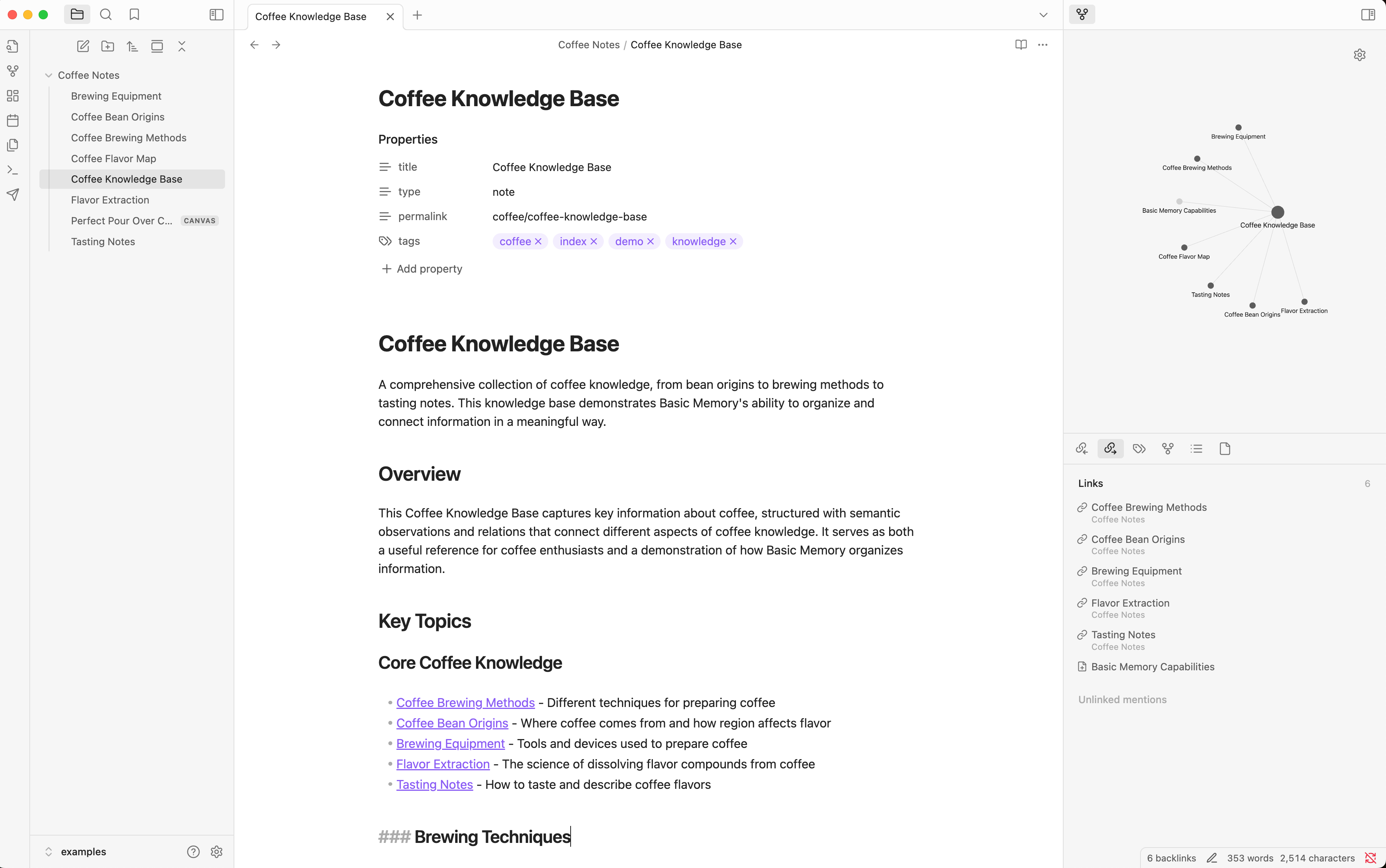
With Obsidian
- Open your
~/basic-memorydirectory as an Obsidian vault - Use Graph View to visualize connections
- Edit files directly in Obsidian
- Changes sync automatically - ask the AI to read a note to see updates
With Git
Basic Memory files are git-friendly:
cd ~/basic-memory
git init
git add .
git commit -m "Initial knowledge base"
Benefits:
- Version history for all changes
- Backup to GitHub/GitLab
- Collaborate with others
- Track what changed over time
With Other Editors
Basic Memory uses standard Markdown that works with:
- VS Code with Markdown extensions
- Typora for rich text editing
- Any text editor for quick edits
- Web editors for remote access
The database syncs regardless of how you edit files.
Best Practices
Knowledge Creation
- Create relations - Link related concepts with
[[WikiLinks]] - Make observations - Structure facts with
[category]syntax - Be descriptive - Use clear titles and rich content
- Add context - Include background and reasoning
- Review and refine - Edit AI-generated content for accuracy
Workflow
- Use special prompts - "Continue conversation", "Recent activity", "Search"
- Build incrementally - Add to existing notes rather than creating duplicates
- Organize regularly - Move old content to archive
- Cross-reference - Link new content to existing knowledge
- Use projects - Separate work, personal, research
Long-term Maintenance
- Archive old content - Keep active knowledge base focused
- Refactor connections - Update relations as knowledge evolves
- Regular reviews - Periodically update key documents
- Backup regularly - Use git, cloud sync, or snapshots
Troubleshooting
The two most common symptoms:
- Changes not showing up — check
basic-memory status, then rebuild the index withbasic-memory reindex - Claude can't find knowledge — confirm the files are in the right project and the frontmatter is valid YAML
For the full runbook — sync, search, install, config, and logs — see Troubleshooting.
Getting Help
- Discord: discord.gg/tyvKNccgqN - #help channel
- GitHub: github.com/basicmachines-co/basic-memory/issues
# View all commands
basic-memory --help

# Help for specific commands
basic-memory status --help
basic-memory project --help