

Claude Desktop
Claude Desktop is the flagship way to use Basic Memory. Connect once, and Claude gains full access to your knowledge base — reading, writing, searching, and building on past conversations automatically.
Basic Memory describes its tools to Claude through the Model Context Protocol, so Claude already knows how to use them. You just ask in plain language.
Cloud Setup
Basic Memory is published in Claude's Connectors Directory. This is the recommended way to connect Basic Memory Cloud.
Sign Up
Create your account at basicmemory.com
Open the Connectors Directory
Open the Claude Directory. You can also go to Settings → Customize → Connectors and select +.
From a chat, select + → Connectors → Manage connectors, then select + next to Connectors.
Find Basic Memory Cloud
Search for Basic Memory Cloud and open the published connector. Review its description and capabilities.
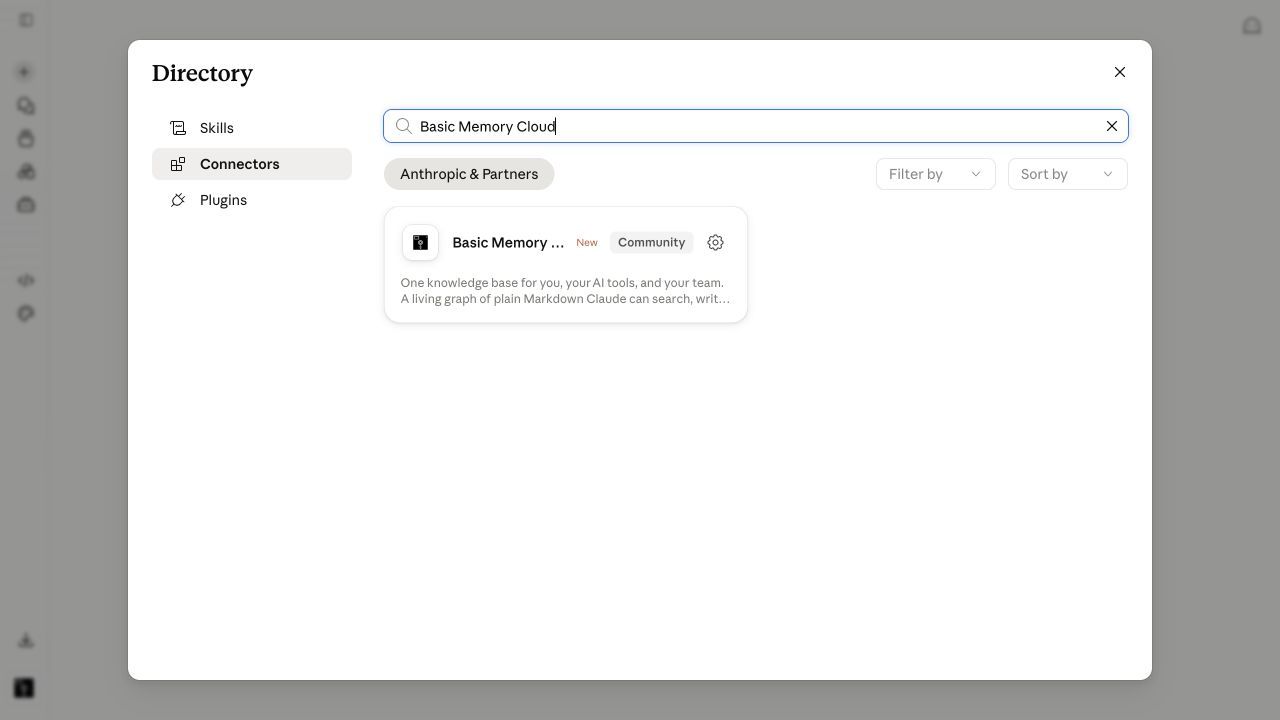
Connect
Select Install, then complete the Basic Memory authorization flow. If it is already connected, the directory shows Manage instead.
Verify Setup
Return to a chat and ask:
List my Basic Memory projects.
Manual Cloud Setup
Use the custom-connector flow only if the directory listing is unavailable or you specifically need to add the MCP endpoint yourself.
Open connector settings
In Claude Desktop or Claude.ai, go to Settings → Customize → Connectors.
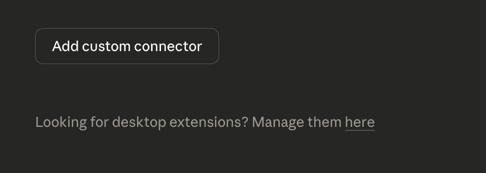
Add a custom connector
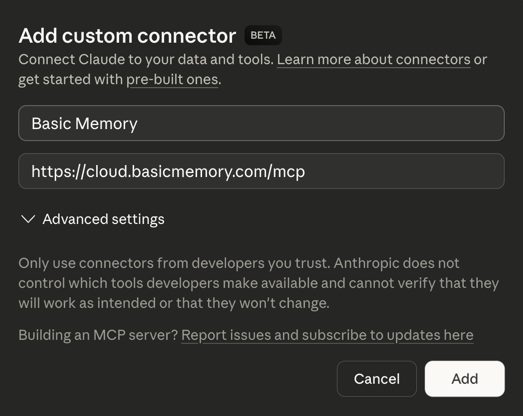
Select Add custom connector and enter:
- Name: Basic Memory
- Remote MCP server URL:
https://cloud.basicmemory.com/mcp
Authenticate
Select Connect to start the OAuth flow. You'll be redirected to Basic Memory to authorize access.

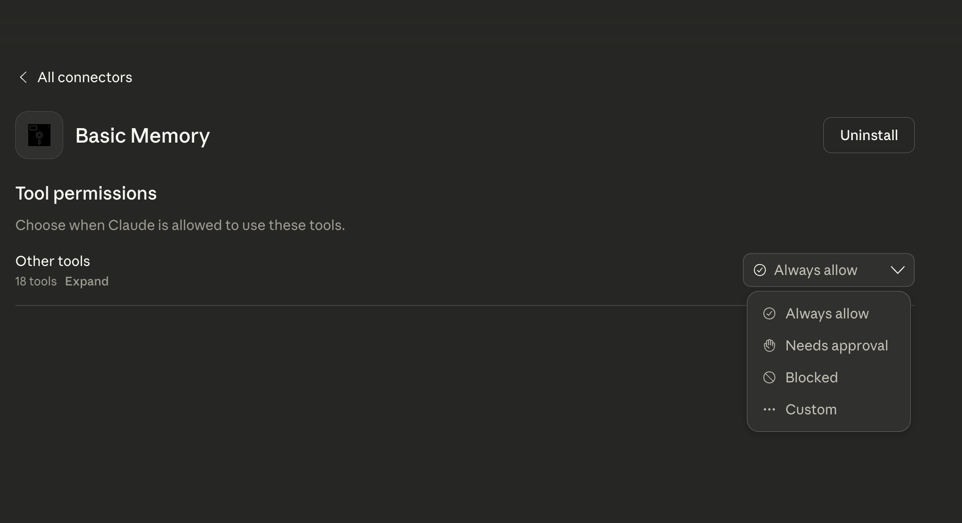
Configure Tools (Optional)
Select Configure to customize which tools are enabled.
Verify Setup
Confirm Basic Memory appears in the tools menu in chat.
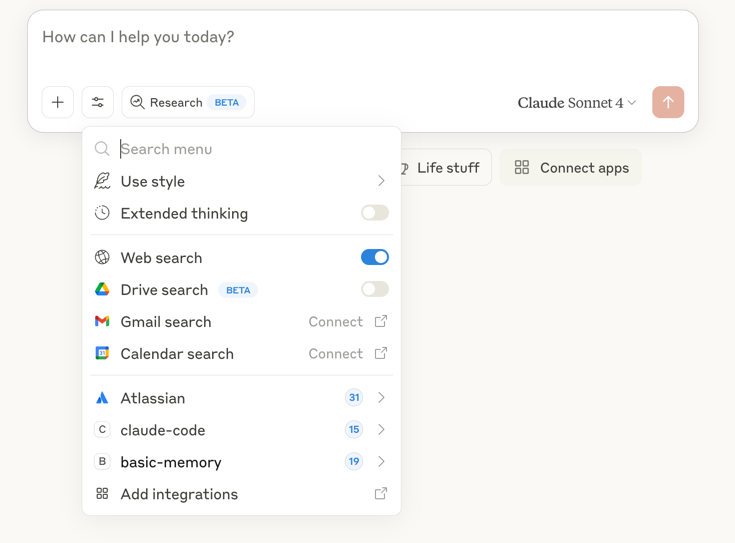
Try prompting: List my projects
Local Setup
Install Basic Memory first — see Quickstart: Local for the Homebrew and uv install commands.
Edit the Claude Desktop config
| Platform | Config Location |
|---|---|
| macOS | ~/Library/Application Support/Claude/claude_desktop_config.json |
| Windows | %APPDATA%\Claude\claude_desktop_config.json |
| Linux | ~/.config/Claude/claude_desktop_config.json |
Add this configuration:
{
  "mcpServers": {
    "basic-memory": {
      "command": "uvx",
      "args": ["basic-memory", "mcp"]
    }
  }
}
"command": "basic-memory", "args": ["mcp"] instead — uvx only exists if you installed uv.which uvx (or which basic-memory for Homebrew installs) and replace the "command" value with the full path (e.g., "/Users/yourname/.local/bin/uvx").Restart and verify
Restart Claude Desktop, then open the search and tools menu in the chat input area — Basic Memory tools should be listed.

Try It
Once connected, try these prompts to see Basic Memory in action:
Save something from a conversation:
Create a note summarizing what we just discussed about API rate limiting.
Claude will write a structured note with observations, tags, and relations to other topics in your knowledge base.
Search with meaning, not just keywords:
Find my notes about login security.
Even if your notes use terms like "authentication hardening" or "credential rotation," semantic search surfaces them based on meaning. See Semantic Search for details.
Pick up where you left off:
What have we been working on this week?
Claude checks recent activity and offers to continue any thread. Changes sync in real time — edits you make in any text editor appear instantly in your next conversation.
Open your knowledge base in the conversation:
Open Basic Memory
Claude displays the Pocketbook — a working interface inside the chat. Browse folders and notes, open the full editor to make changes in place, or point the agent at a folder so new notes land where you want them.
You can also reference specific notes with memory:// URLs. Learn more in Memory URLs.
Troubleshooting
Tools not appearing
- Directory connector: Open Settings → Customize → Connectors and confirm Basic Memory is connected. In a managed workspace, an owner may need to enable the connector first.
- Custom cloud connector: Re-open Claude Desktop after adding it. Check that the connector URL is exactly
https://cloud.basicmemory.com/mcp. - Local: Verify
uvis installed (which uvx), check config JSON syntax, and restart Claude Desktop.
Tools appear but return errors
- Cloud: check the Activity view for failed operations, or disconnect and reconnect the connector.
- Local: check Basic Memory is installed (
basic-memory --version), verify project index status (basic-memory status), and check file permissions in your~/basic-memorydirectory.
Changes not showing up (local)
- Real-time sync is on by default. Run
basic-memory statusto confirm. - Make sure the file is in the correct project directory.
- If the index is stale, rebuild it with
bm reindex(file watching runs automatically inside the MCP server).
Project selection
Projects are selected at the start of each conversation. For single-project setups, set a default in ~/.basic-memory/config.json:
{
  "default_project": "main"
}
For Claude's current platform instructions, see Use connectors to extend Claude's capabilities.