

Shared Notes
Shared Notes are public shares: publish a single note as a read-only web page that anyone with the link can read, no account required — handy for a document, a spec, or a writeup you want to show people outside your workspace.
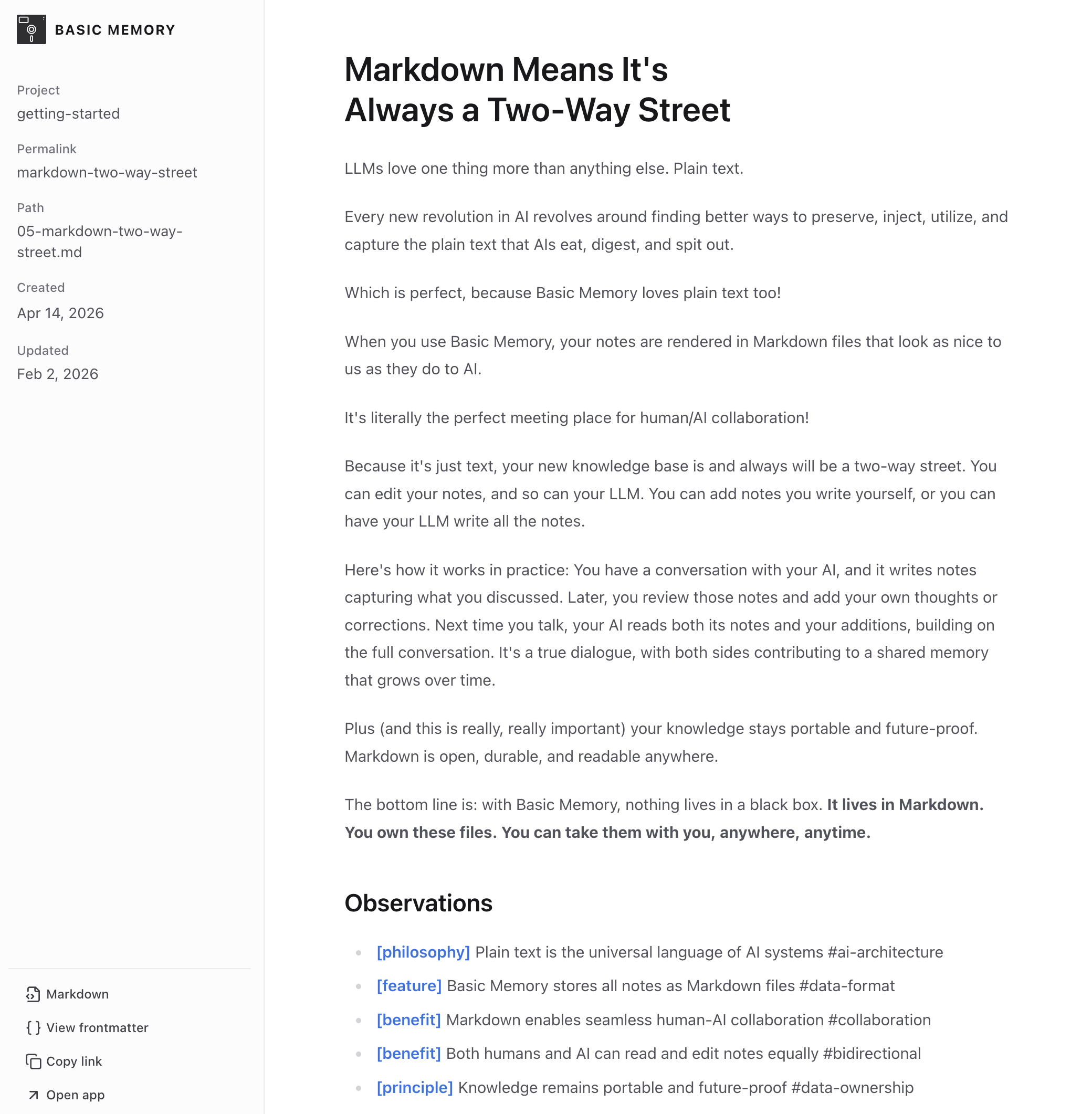
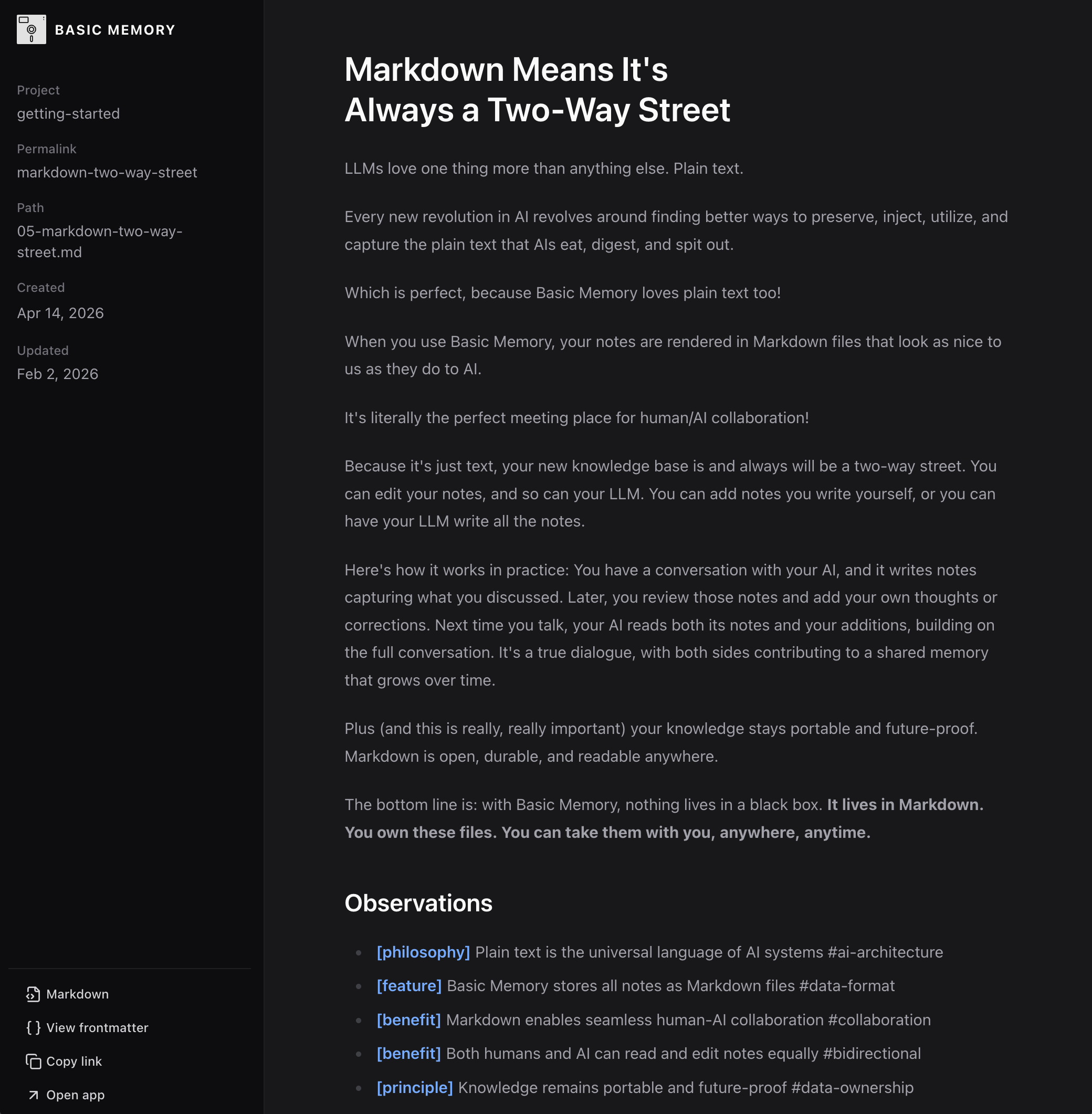
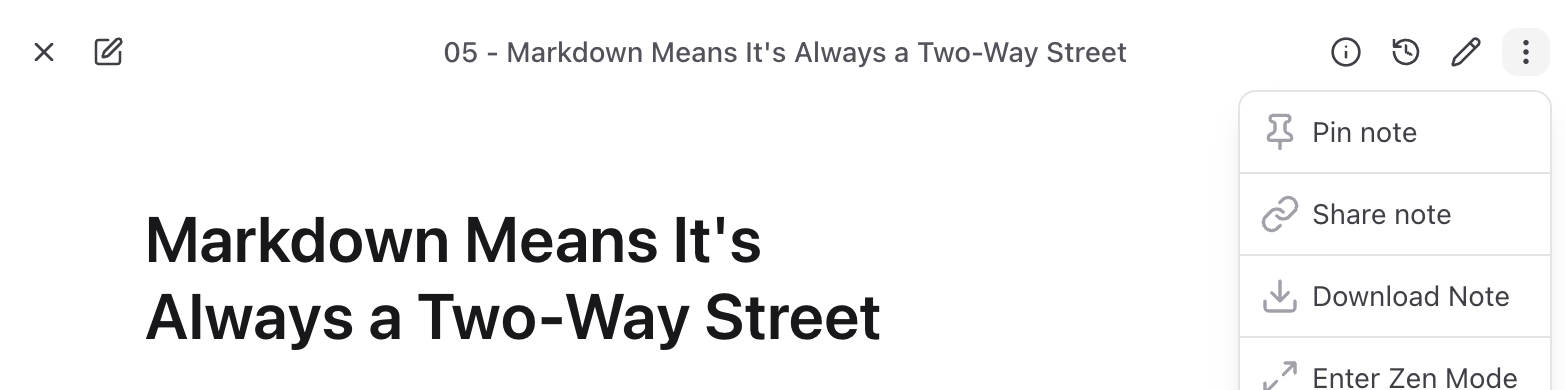
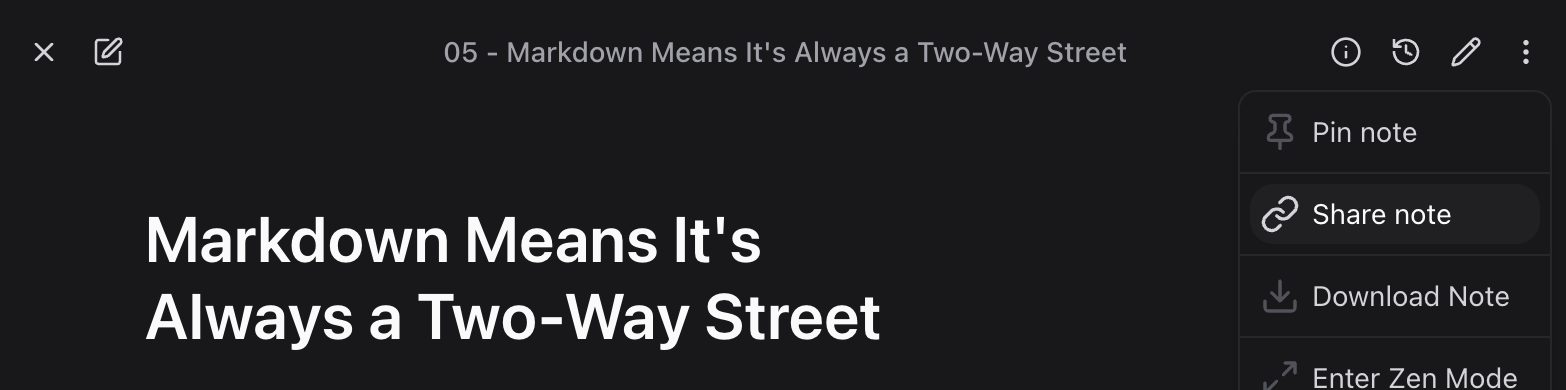
Share a note
Open a saved note, then use its ⋮ menu → Share note.
A dialog opens with a warning — "Anyone with this link can view the note without signing in." — and a Create Link button. Click it to generate the public link, then Copy to copy it.
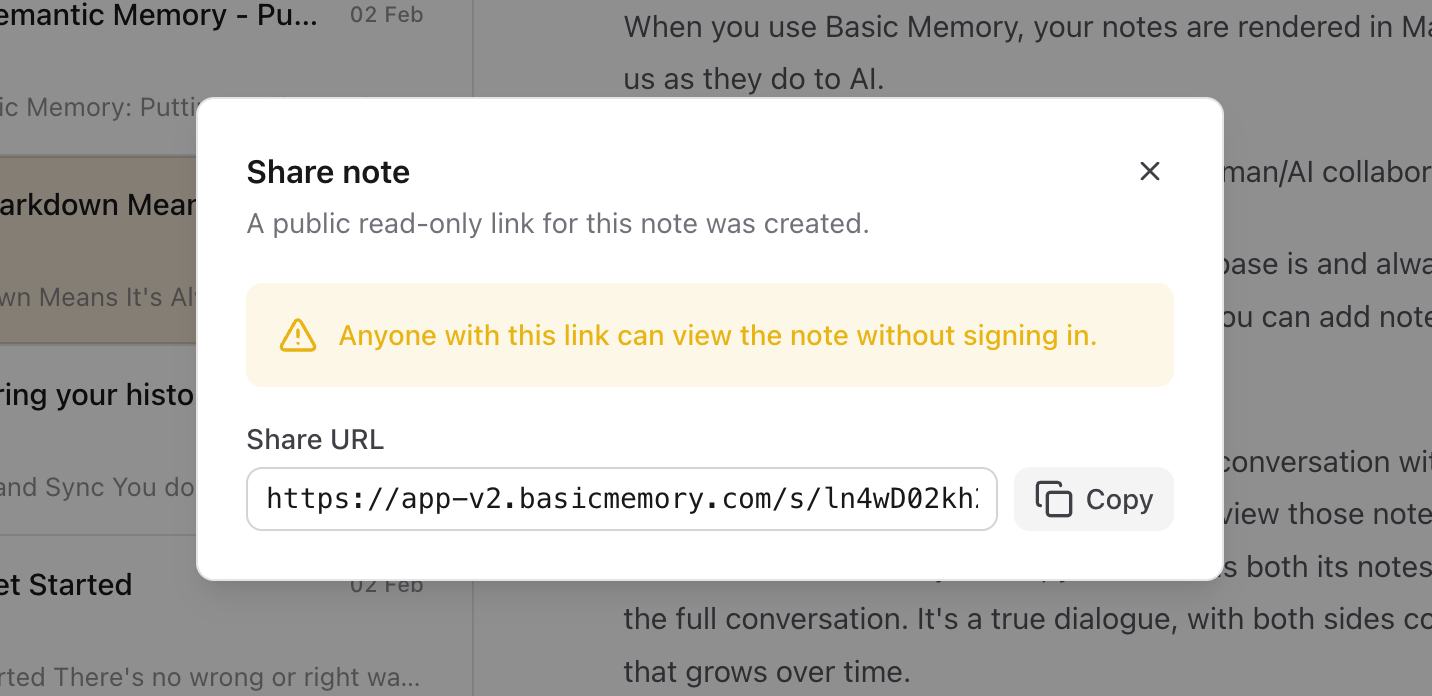
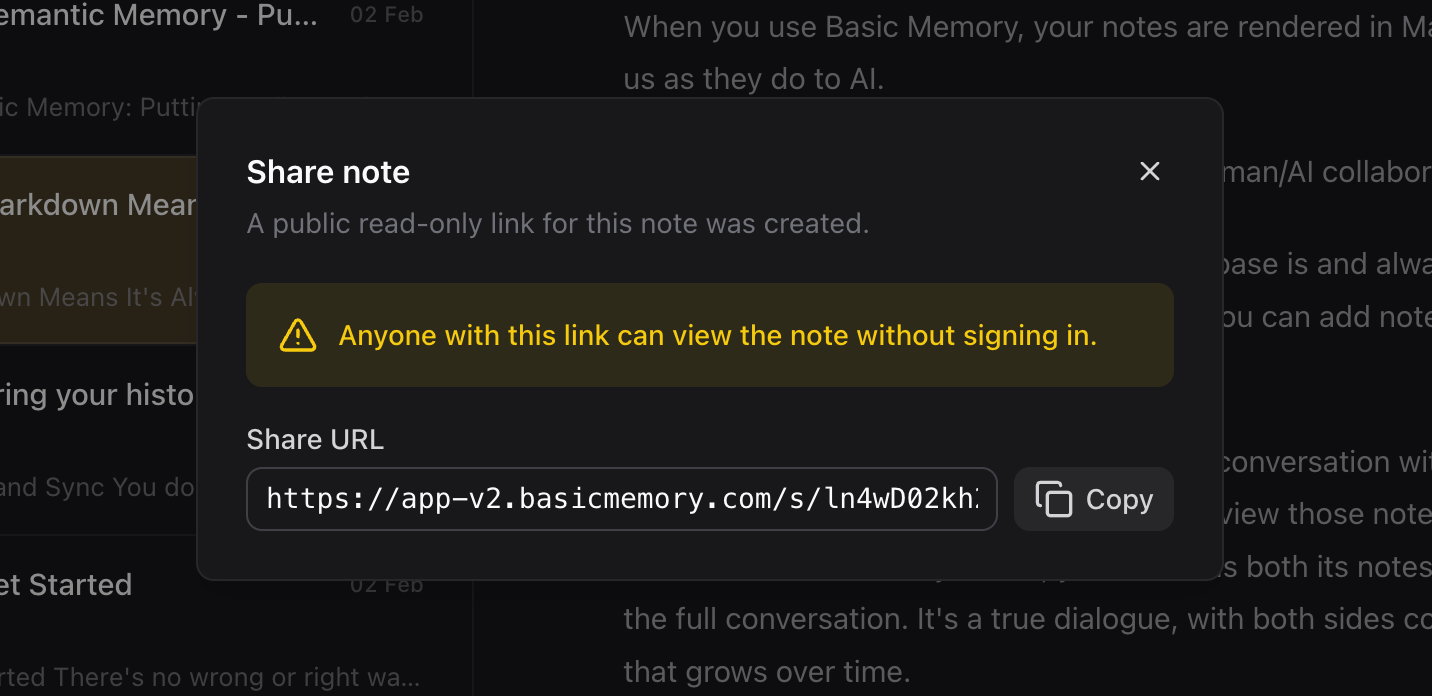
Click Copy to copy the link, then share it however you like. The link looks like:
https://cloud.basicmemory.com/s/<token>
What the recipient sees
The shared link opens a clean, full-page rendered view of the note, with a Readable/Full toggle to switch between a comfortable reading width and the full content width. Visitors:
- Don't need an account and can't edit — it's read-only.
- Can follow
[[wiki links]]in the note (they render as preview links). - Can view the note's frontmatter and copy the link.
- Can grab the raw Markdown by adding
/rawto the URL — useful for feeding a note to a tool or LLM.
If a link is invalid, disabled, or revoked, the page simply returns a generic "not found" — your workspace and share details are never exposed.
Manage your shares
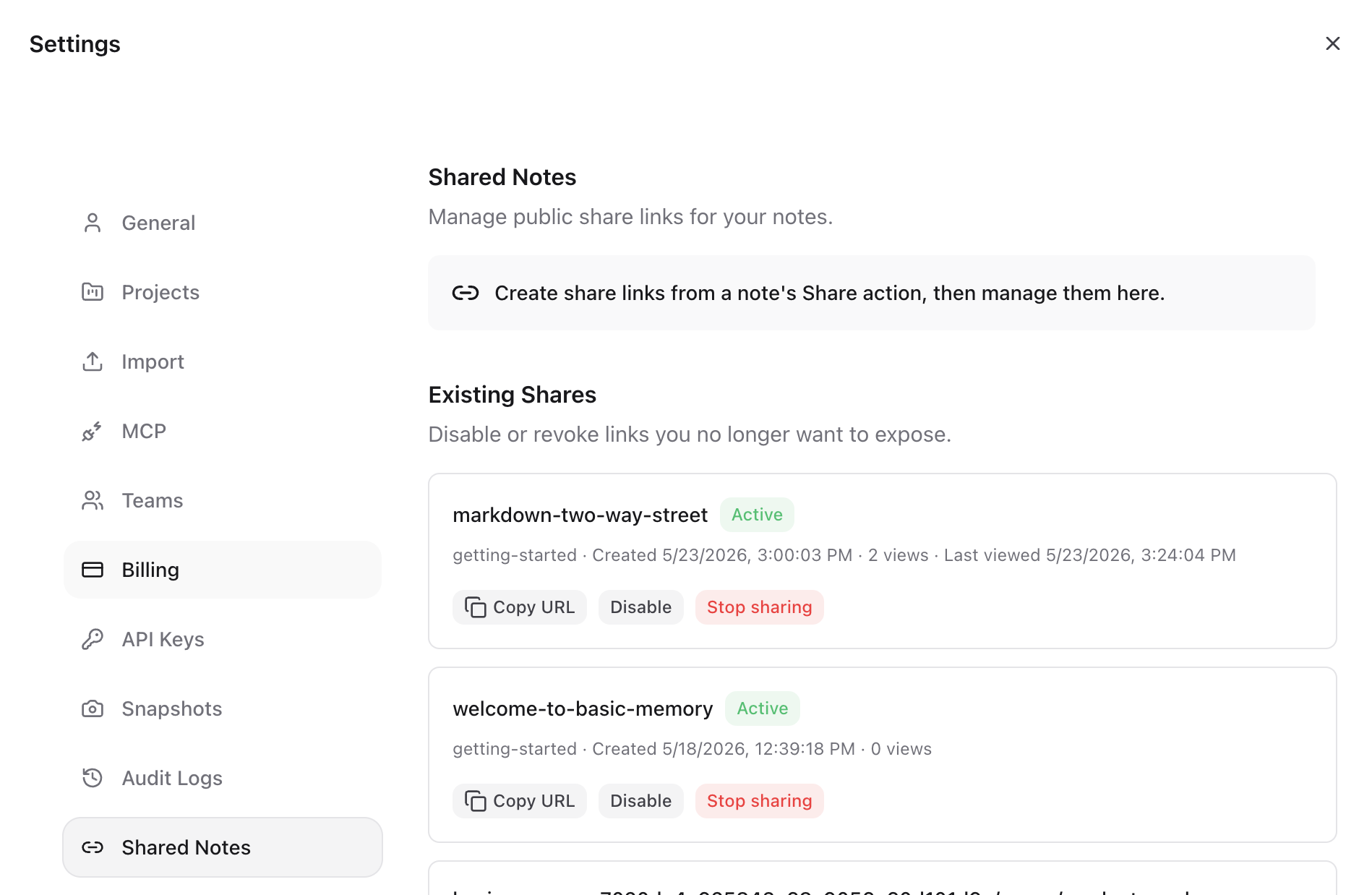
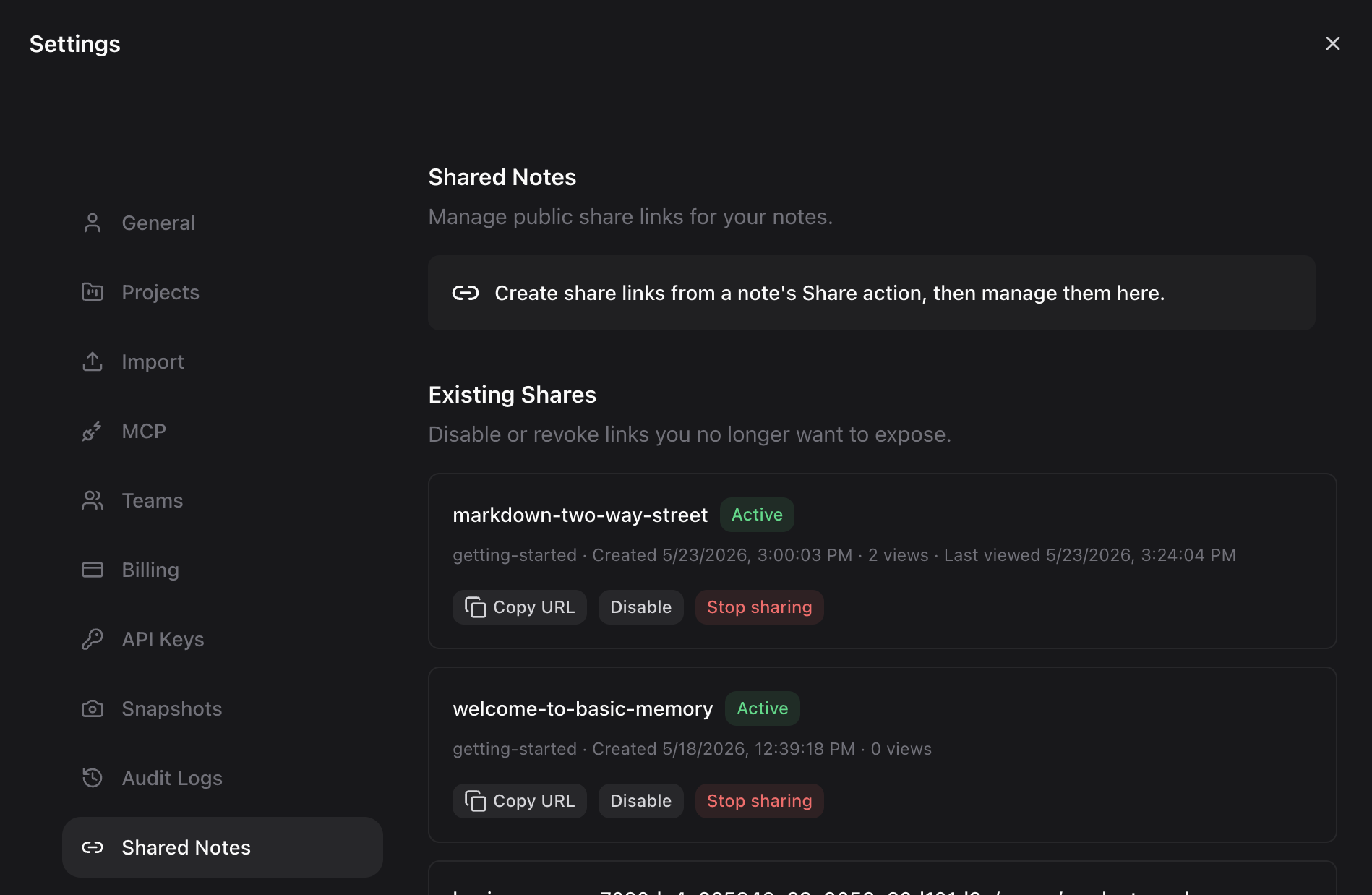
Go to Settings → Shared Notes to see and manage every link in the workspace — in a team workspace, that includes links created by teammates.
| Action | Where | What it does |
|---|---|---|
| Sharing link | Note's ⋮ menu | View and copy the existing public link |
| Disable / Enable | Settings → Shared Notes | Pause a link without deleting it, then turn it back on later |
| Stop sharing | Both | Permanently revoke the link |
Moving or renaming a note doesn't break its share link — the link follows the note. Deleting the note retires the link.
Who can share
In a team workspace, any member except a Viewer — Editors, User Admins, Admins, and Owners — can create, disable, and revoke share links. In a personal workspace, you manage your own.
Good to know
- Each note has one public link in the app.
- Links have no password — anyone who has the link can read the note, so only share notes you're comfortable making public.
- Revoke or disable a link from Settings → Shared Notes the moment you no longer want it reachable.