

Cloud Snapshots
Basic Memory Cloud includes point-in-time snapshots for backup and recovery. Create manual snapshots before major changes, or rely on automatic daily backups.
What Snapshots Do
- Rollback to a previous state after accidental changes
- Browse historical versions of your notes
- Restore individual files or entire folders
- Protect against accidental deletion
Using the Web App
Manage snapshots directly in your browser at app.basicmemory.com.
View Snapshots
Go to Settings → Snapshots and select a workspace to see its snapshots with creation time and description.
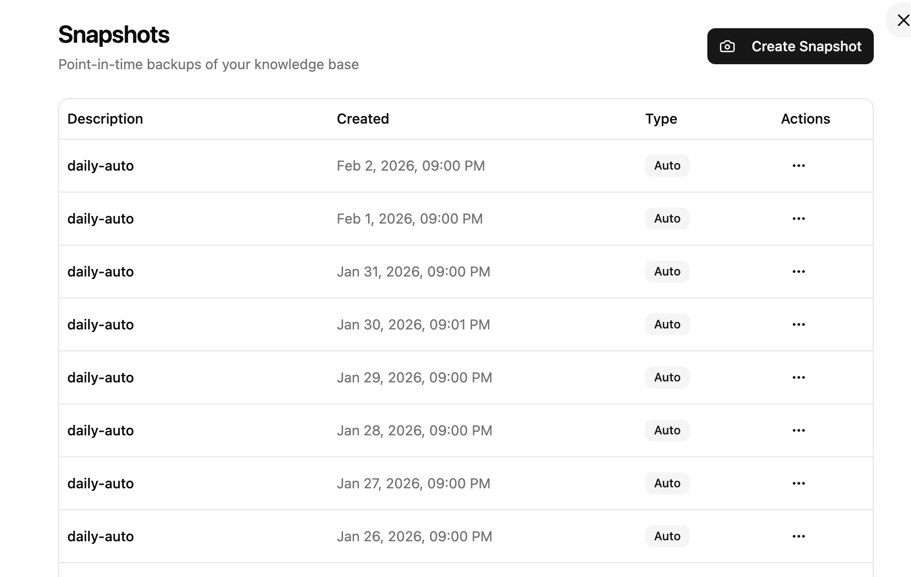
Create a Snapshot
- Click Create Snapshot
- Add an optional description (e.g., "Before reorganizing projects")
- Confirm

Restore from a Snapshot
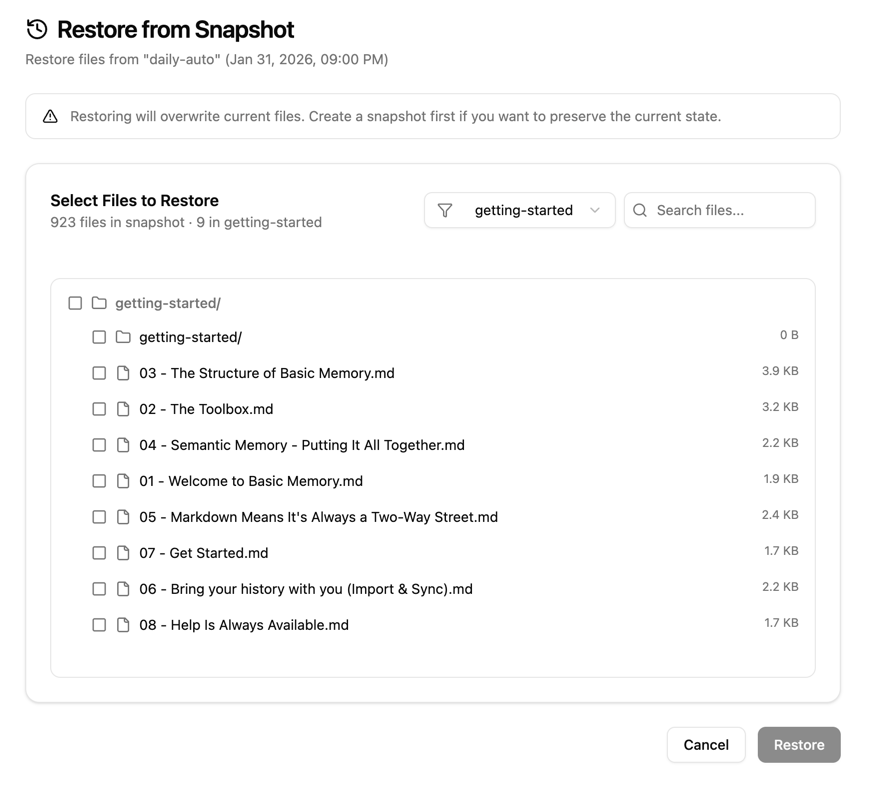
- On the snapshot's row, click Restore
- Filter by project or search for specific files
- Select files or folders to restore
- Click Restore to copy them back
Using the CLI
Manage snapshots from the command line with bm cloud snapshot commands.
Create a Snapshot
bm cloud snapshot create "Before reorganization"
The command confirms the snapshot with its ID (a UUID), creation time, and description.
List Snapshots
bm cloud snapshot list
Lists your snapshots in a table: ID, description, whether it was automatic, and creation time.
View Snapshot Details
bm cloud snapshot show <snapshot-id>
Browse Snapshot Contents
View files in a snapshot without restoring:
bm cloud snapshot browse <snapshot-id>
Lists the files in the snapshot with their sizes. Paths start with the project name (e.g. my-project/notes/ideas.md). Filter by path:
bm cloud snapshot browse <snapshot-id> --prefix my-project/notes/
Restore Files
Restore paths start with the project name, exactly as snapshot browse shows them. Restore a specific file:
bm cloud restore my-project/notes/important.md --snapshot <snapshot-id>
Restore an entire folder:
bm cloud restore my-project/research/ --snapshot <snapshot-id>
Delete a Snapshot
bm cloud snapshot delete <snapshot-id>
When to Create Snapshots
- Before reorganizing your folder structure
- Before bulk imports from Claude or ChatGPT
- Before deleting multiple notes
- Before running automated scripts
- At project milestones
Automatic Snapshots
Basic Memory Cloud creates automatic daily snapshots:
- Frequency: Once per day
- Naming:
daily-autoprefix - No action required: Happens automatically
You can rely on automatic snapshots for basic protection, but manual snapshots are recommended before major changes.
Best Practices
- Name snapshots descriptively - Use names like "Before Q1 reorganization" instead of "backup1"
- Create before bulk operations - Imports, reorganizations, and deletions
- Review automatic snapshots - Check that daily snapshots are being created
- Test restore occasionally - Verify you can restore files when needed
- Clean up old snapshots - Delete manual snapshots you no longer need
Troubleshooting
Snapshot Creation Failed
- Check your subscription status:
bm cloud status - Verify you're authenticated:
bm cloud login - Check available storage in your account
Can't Find a File in Snapshot
- Use
browsewith different paths to locate the file - Check if the file existed at the snapshot time
- Try an earlier snapshot if the file was deleted before the snapshot
Restore Didn't Work
- Confirm the exact path exists in the snapshot:
bm cloud snapshot browse <snapshot-id> --prefix <path> - Make sure the path is project-prefixed, exactly as browse shows it (e.g.
my-project/notes/file.md) - Re-run the restore with the corrected path — files always restore to their original location